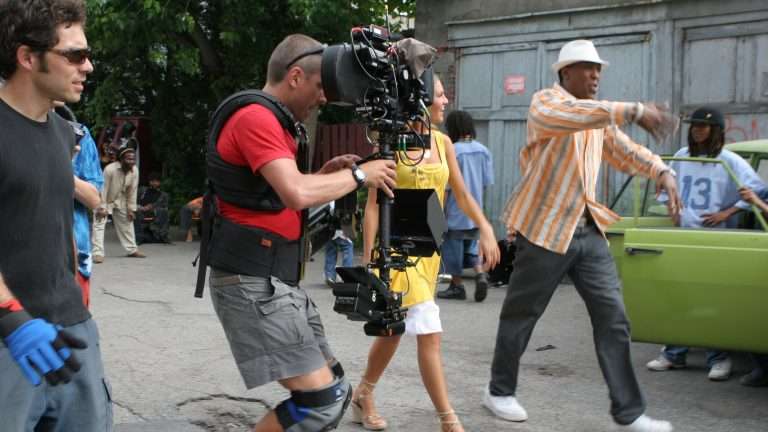
In filmmaking, there are countless situations where unwanted objects or elements appear in a scene. Whether it’s a random person walking through the background, visible camera equipment, or an out-of-place element, these distractions can undermine the cinematic experience. Fortunately, with advancements in AI and visual effects (VFX), it’s now possible to remove unwanted objects from movie scenes quickly and effectively, without reshooting entire sequences. In this guide, we’ll explore how you can use free AI tools to remove unwanted elements from movie scenes and elevate your video editing skills.
What Are AI Tools for Video Editing?
AI tools for video editing are powered by machine learning algorithms that analyze video footage frame by frame to identify objects or elements that can be removed or replaced. These tools work similarly to photo editing software but are designed to handle the complexity of moving images, multiple layers, and dynamic backgrounds.
Using ImagineArt AI video generator offers several advantages, especially for object removal. AI algorithms are designed to detect objects within a scene, then automatically fill in the background with contextually appropriate details based on the surrounding pixels or video frames. This process can save hours of manual labor and produce results that are often indistinguishable from original footage.
Why Use Free AI Tools for Video Editing?
Free AI tools are an excellent choice for filmmakers, video editors, or hobbyists who are working with a tight budget or simply want to experiment with video editing without significant investment. Here’s why using free AI tools is advantageous:
- Cost-effective: Many free AI tools for video editing offer powerful object removal features without requiring expensive software subscriptions.
- Ease of Use: These tools are generally user-friendly, even for beginners. You don’t need to be an expert in visual effects to get started.
- Speed: AI tools can process footage quickly and efficiently, removing objects with minimal manual intervention, which can save valuable time during the editing process.
By using free AI tools, you can achieve professional-quality results without the need for costly VFX studios or advanced technical knowledge.
Step-by-Step Guide on Using AI Tools to Remove Objects from Movie Scenes
The process of removing unwanted objects from a movie scene using AI tools is similar to photo editing, but with a few additional steps to handle the complexity of video footage. Below is a detailed step-by-step guide:
Step 1: Import Your Footage
Start by importing the movie scene into your video editing software or AI-powered editing tool. Most AI tools support common video file formats such as MP4, MOV, and AVI. Ensure that your footage is high-quality for optimal results—low-quality footage may result in less accurate object removal.
Step 2: Identify and Select the Unwanted Object
Once the footage is loaded, play through the scene and pause at the frame where the unwanted object or element is most visible. Depending on the AI tool you’re using, there are several ways to select the object:
- Use a brush or selection tool to outline the object manually.
- Let the AI automatically detect the object based on its color, movement, or texture.
In some tools, you may need to define the area of removal frame by frame, especially if the object moves during the scene.
Step 3: Activate the Object Removal Feature
After selecting the unwanted object, activate the AI object remover tool. The AI will automatically start processing the scene and remove the object. The background will be reconstructed using nearby pixels or video frames, ensuring that the removal looks natural and seamless.
Some tools may allow you to adjust the AI’s behavior, such as fine-tuning how it fills in the background or how it handles moving objects. If the object is not perfectly removed in the initial pass, you can always run the tool again or make manual adjustments.
Step 4: Refine the Removed Area
Once the object is removed, it’s time to fine-tune the results. Even though AI tools are efficient, there might be minor imperfections or artifacts left behind, such as mismatched textures or lighting inconsistencies. Use the software’s built-in tools to:
- Smooth out the areas where the object was removed.
- Correct any visible seams or mismatches in the background.
- Adjust the lighting or shadows to blend the edited area with the rest of the scene.
You may also need to manually adjust the footage in some cases to ensure that the transition between the edited part and the rest of the scene is flawless.
Step 5: Export the Edited Video
Once you’re satisfied with the result, export the video in your preferred format. You can adjust the video resolution and bitrate depending on your desired output quality, whether for online use, presentations, or further editing.
Tips for Better Results When Removing Objects from Movie Scenes
While AI tools are powerful, there are several tips that can help improve the quality of the object removal process:
- High-Quality Source Material: The higher the resolution and quality of your footage, the better the AI tool will perform. Low-resolution videos may lead to visible artifacts or less natural background replacements.
- Use Motion Tracking: If the unwanted object moves throughout the scene, consider using motion tracking. This allows the AI tool to track the object’s movement across frames and make more accurate removals.
- Consistent Lighting: If your scene involves changing light conditions (like a sunset or flickering lights), it may be harder for the AI to seamlessly fill in the background. Try to stabilize lighting or manually adjust the video to make the AI’s job easier.
- Manual Adjustments: While AI can handle a lot, manual touchups might still be necessary. Use tools like the clone stamp, patch tool, or gradient adjustments to perfect the final result.
Limitations of Free AI Tools for Video Editing
While free AI tools are amazing for editing, they do come with a few limitations:
- Quality and Accuracy: Free AI tools may not offer the same level of detail or accuracy as premium software, especially when dealing with complex scenes or high-level visual effects.
- Processing Power: Video editing, especially object removal, can be resource-intensive. Free tools may be slower, especially with large video files, and might require a powerful computer to process the footage effectively.
- Limited Features: Free versions of AI tools often have restrictions on features such as resolution, video length, or the number of objects that can be removed. Some tools may add watermarks or have file size limits.
Conclusion
Removing unwanted objects from movie scenes is no longer an arduous task, thanks to AI-powered tools. With the ability to quickly detect and remove elements from footage, these tools empower filmmakers and video editors to focus more on their creative vision without worrying about distractions in the frame. Free AI tools offer a cost-effective and efficient solution, and with the step-by-step process outlined above, you can start improving your video editing skills right away.